How to install Windows Subsystem for Linux to use Rsync with Hugo on Windows 10 - Part 1

I am a huge fan of the Hugo framework for generating static sites.
When building with Hugo, I wanted to be able to deploy my site using rsync. Rysnc allows for fast, one click file transfers to my server and can be configured to transfer only the new or changed files.
Unfortunately, Windows does not support this out of the box.
BUT, the Windows Subsystem for Linux (WSL) would allow me to access the rysnc function without having to dual boot.
Here’s how I set up WSL on my Windows 10 Machine. This guide can be used to install WSL even if you do not wish to install Hugo or use rsync.
Step 1 - Download WSL
To download:
- Download the Linux flavor of your choice from the Microsoft Store. (Start > Search “Microsoft Store”)
- Chose your Linux flavor. I selected Ubuntu because it’s popular and well documented. I chose version 16.04 LTS as there are some reports that it is more stable in the WSL environment.
- Find your version and click install.

Step 2 - Install WSL
To install:
- Open the start menu
- Search for and select the distribution you just installed
- Cross your fingers that it installs without issue.
WSL didn’t install for me correctly right away. Just my luck.

Step 2.b - WSL Installation Troubleshooting
If you have no installation problems, skip this step.
If you received the 0x8007029e error in step 2 - reboot your PC. If a reboot of your machine does not solve this error, fear not, github will save you. This github thread solved my problems.
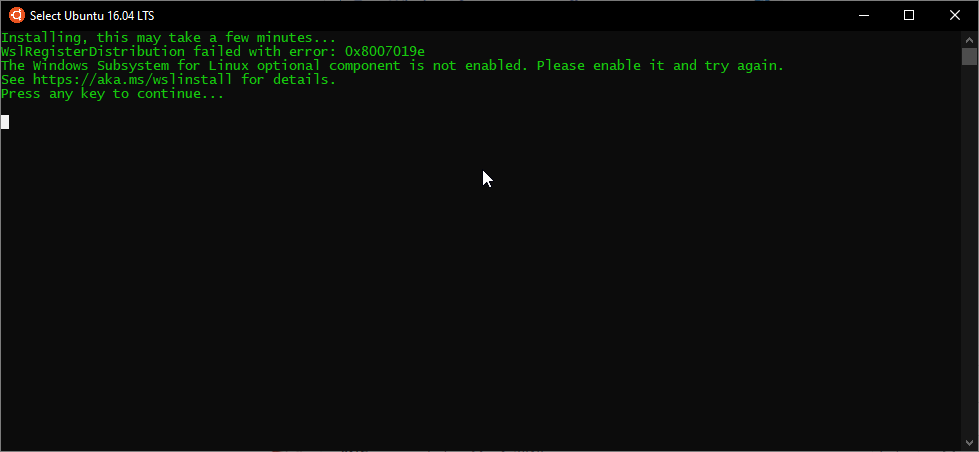
To fix the 0x8007029e error:
- Open the Start Menu
- Search “Windows Features”
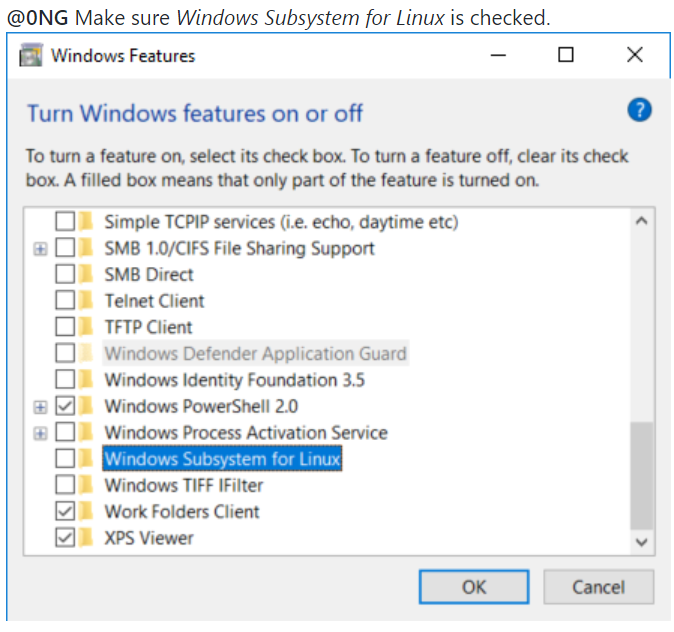
- Within the Windows Features screen, scroll to locate the item “Windows Subsystem for Linux”
- Ensure the “Windows Subsystem for Linux box is checked
- Close the Windows Features window and reboot your computer.
Step 3 - Update your WSL package.
As a best practice, you should update whatever flavor of Linux you just installed.
For uBuntu:
- Open the Start Menu
- Search for “uBuntu” and select the WSL app
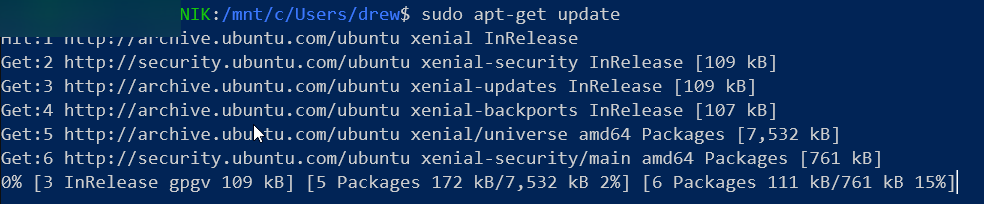
- On the command line that opens, run the update command for your flavor (on uBuntu:
sudo - apt-get update
Conclusion: Windows Subsystem for Linux is now installed on your Windows 10 PC
For instructions on how to install Hugo on WSL and deploy your site, check out:
Part 2 - Installing Hugo on WSL
