Trouble Activating Chase Sapphire Reserve DoorDash DashPass Benenfit and How to Fix the Issue
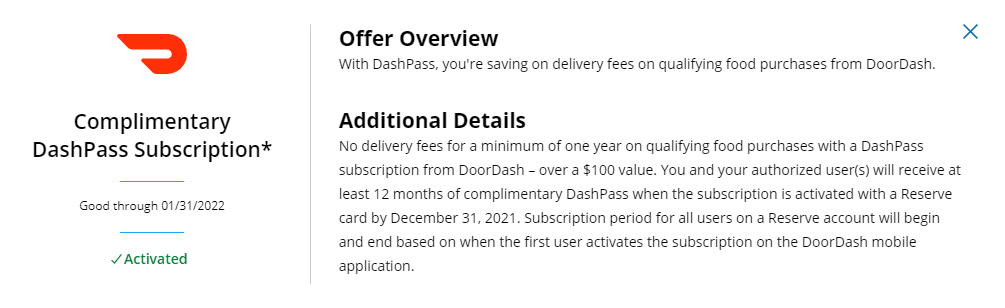
Chase recently partnered with DoorDash to offer DashPass (the premium DoorDash subscription with no delivery fees and reduced service fees) and a $60 dollar statement credit for DoorDash purchases to Sapphire Reserve Card Members.
However, when I attempted to take advantage of the perk, the Chase Sapphire Reserver DoorDash perk was not working.
I initially followed the instructions here and was not successful.
I reached out to DoorDash for support and they were more than helpful. Their full response is below and the instructions have since been added to the DashPass Chase Reserve Support page, but is buried at the bottom.
tl;dr -
Delete your Chase Saphhire Reserve Card from DoorDash and re-add the card to get a popup screen asking if you wish to enroll in DashPass.
You will have to add another card after deleting your Saphhire Reserve if that is the only card in the account as DoorDash won’t let you be “cardless.”
For more details, see step 2 and 3 below.
Customer Support Email from DoorDash
Hi,
Thank you for contacting DoorDash. If your Chase DashPass benefits are not applying or you have recently updated your Chase card, please follow these steps to deactivate and then reactivate your DashPass Subscription to receive the Chase DashPass benefits:
- End your current DashPass subscription
Mobile: Tap on the Account tab > Tap on Manage DashPass > Tap on End Subscription
Web: Click on the menu icon in top left corner (3 stacked lines) > Click on Manage DashPass > Click on End Subscription
Note: If you don’t see the “Manage DashPass” option, then you’re not currently enrolled in DashPass. Continue to next steps.
- Delete the Chase card from the DoorDash app or website
Mobile: Tap on the Account tab > Tap on Payment Cards > Add or select a different credit card as the default payment method > Swipe left on the Chase card and delete
Web: Click on the menu icon in top left corner (3 stacked lines) > Click on Account > Scroll down to Payment Cards > Click on the X located to the right of the credit card
- Add an eligible Chase card back to the DoorDash app or website and select that card as the default payment method. Note: When entering your card details, double-check that the zip code entered matches your credit card zip code.
Mobile: Tap on the Account tab > Tap on Payment Cards > Tap on Add a Card > Enter the card details > Confirm that there’s a checkmark next to the card. If not, tap on the card to set as default.
Web: On the Account page Payment section, click on Add Card > Enter the card details > Confirm that card says “Default”. If not, click on the card to set as default.
- Enroll in DashPass via the DoorDash app
Mobile: Tap on the Account tab > Tap on Get $0 delivery fees with DashPass > Tap on Activate DashPass
Web: n/a - Do this in the DoorDash app using mobile steps above.
- Confirm that you’re enrolled in Chase DashPass
Mobile: Tap on Account > Tap on Manage DashPass
Web: Click on the menu icon in top left corner (3 stacked lines) > Click on Manage DashPass
Note: If you don’t see the “Manage DashPass” option, then you’re not enrolled. Go back to Step 4 and follow those steps. If you’ve used an eligible Chase card to enroll in DashPass, you’ll see “Chase [card type] subscription”. If you don’t see this, then you’ll need to go back to re-enroll in DashPass using an eligible Chase card. Go back to Step 1 and follow steps.
Best,
DoorDash Support
More About the Chase Sapphire Reserve Benefit from Chase
DoorDash
DashPass subscription
Get unlimited deliveries with a $0 delivery fee and reduced service fees on orders over $12 for a minimum of one year on qualifying food purchases with DashPass, DoorDash’s subscription service.*Same page link to Offer Details Activate by December 31, 2021.
Statement Credits
Earn up to $120 in statement credits on DoorDash purchases through December 31, 2021 – that’s $60 in statement credits through December 2020 and another $60 in statement credits through December 2021.*